
The first time you flashed your RAKwireless based MeshCore repeater you probably connected its USB-C port to your PC and used the web based MeshCore flasher. But now your repeater is 12m up in the air? No worries, you can use the OTA feature to upgrade the firmware over bluetooth whilst sitting in a comfortable chair!
Caution
If this is the first time flashing a RAKwireless board and you still have physical access to it, I strongly suggest you follow the update the bootloader instructions at the end of this post first!
Requirements
- Smart phone
- MeshCore companion node
Preparation
If you will be upgrading a repeater on a location without internet coverage, ensure you have the nRF Device Firmware Update app and repeater firmware on your phone in advance.
Install the nRF Device Firmware Update mobile app (by Nordic Semiconductor ASA) on your smartphone.
Download the ZIP file containing the MeshCore repeater firmware. You should find that file in the MeshCore releases on Github, under the Assets of the latest Repeater Firmware. For example: RAK_4631_repeater-v1.12.0-e738a74.zip
Backup
Upgrading your MeshCore repeater to a new firmware version should keep your repeater setting. But as always, it is a good idea to backup the repeater settings.
Upgrade Steps
Get yourself in Bluetooth range of your repeater.
Go to the MeshCore app, select your repeater on the Contacts screen and choose Manage.
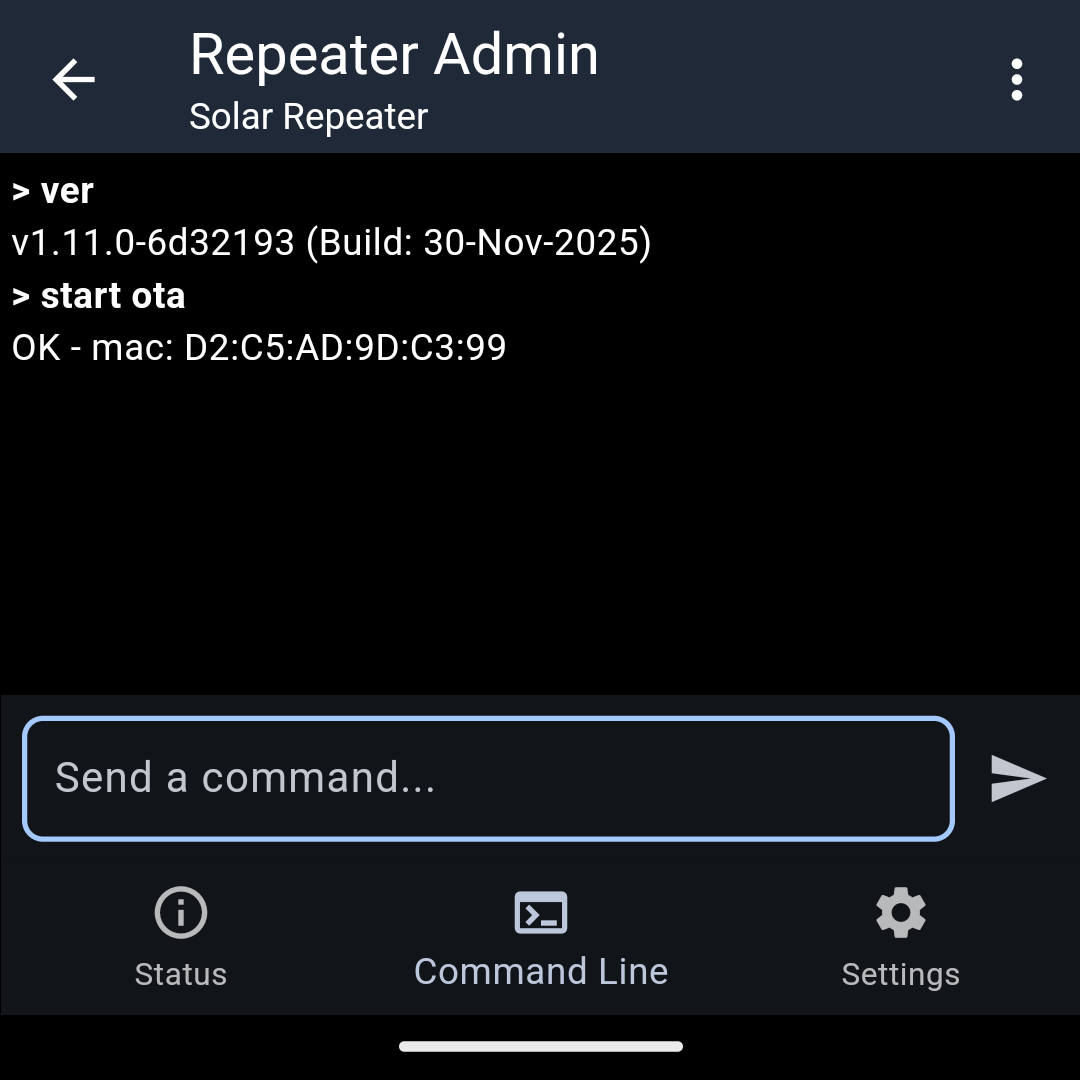
Go to the Command Line screen and send the start ota command:
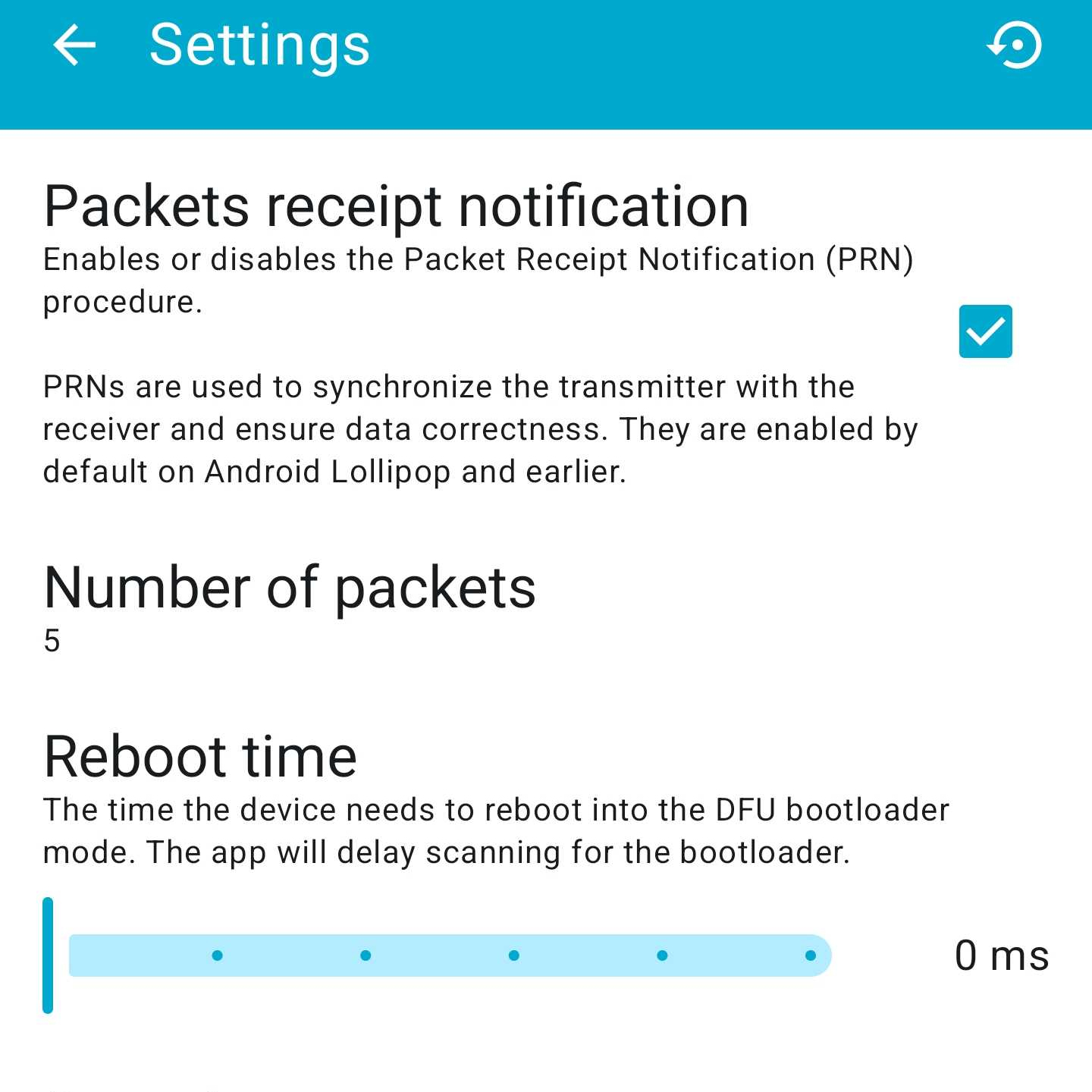
In the nRF Device Firmware Upgrade (DRU) app, go to settings, enable Packet Receipt notification and set Number of packets to 5:
Return to the Firmware Upgrade screen and press File > Select and find the ZIP file with the repeater firmware.
Select the Device, Grant permission for Bluetooth and select your RAK device from the list. It should have the same MAC-address as reported by the start ota command.
Press Start and after a few minutes, the upgrade should be complete.
Finally
After the upgrade, make sure to Sync Clock in your Repeater Admin page of the MeshCore App.
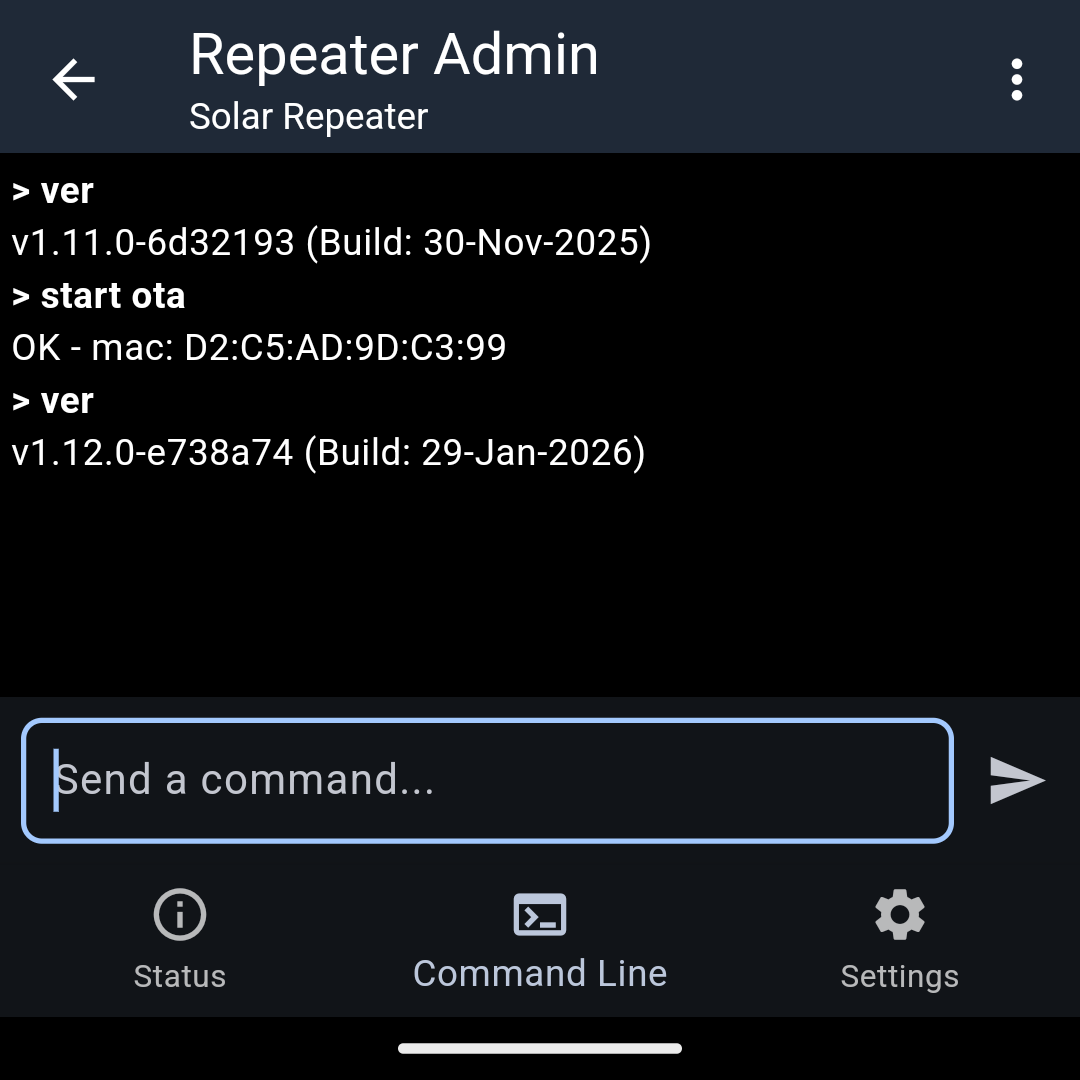
Your should now see that your repeater is running the updated firmware:
Update the Bootloader
The mechanism making OTA (over-the-air) updates via Bluetooth possible is the bootloader on the nRF Device. There have been made improvements to this bootloader to make it more robust and lessen the chance that your device is in a locked up state.
To install the OTAFIX bootloader, first connect the board with a USB cable to your PC.
Double push the RESET button on the WisBlock board to force it to go in DFU mode. In your PC file manager, you should see a drive appear (my storage device was named RAK4631). The contents of INFO_UF2.TXT:
UF2 Bootloader 0.4.3
Model: WisBlock RAK4631 Board
Board-ID: WisBlock-RAK4631-Board
Date: May 20 2023
Ver: 0.4.3
SoftDevice: S140 6.1.1
Make a backup copy of the files.
Go to https://github.com/oltaco/Adafruit_nRF52_Bootloader_OTAFIX/releases and get the uf2 file appropriate for your hardware.
After dropping the uf2 file on the RAK4631 storage, the device will reboot with the updated bootloader.
If a green and blue LED will be flashing, you can update the firmware over the air.
If you are running MeshCore companion firmware then you must run a MeshCore flash erase afterwards in order to format the ExtraFS area.
I checked the contents of INFO_UF2.TXT afterwards to check the bootloader version:
UF2 Bootloader 0.9.2-OTAFIX2.1-BP1.2 lib/nrfx (v2.0.0) lib/tinyusb (0.12.0-145-g9775e7691) lib/uf2 (remotes/origin/configupdate-9-gadbb8c7)
Model: WisBlock RAK4631 Board
Board-ID: WisBlock-RAK4631-Board
Date: Dec 22 2025
SoftDevice: S140 6.1.1